How to Update GB WhatsApp to the Latest Version
Keeping GB WhatsApp updated is the single most important thing you can do to avoid bans, fix bugs, and unlock new features. Unlike the official WhatsApp, which updates itself through the Google Play Store, GB WhatsApp requires a manual update process. This guide walks you through every step, from preparing your data before the update to troubleshooting the most common issues after installing the new version.
Why Updating GB WhatsApp Is Important
GB WhatsApp updates do more than add shiny new features. Each new build usually includes anti-ban patches that hide the app signature from WhatsApp’s detection systems, security fixes that close exploits discovered in older versions, and performance tweaks that reduce crashes and battery drain. If you skip updates, your install becomes easier to detect and more likely to be banned.
Beyond safety, updates bring new features. Recent versions in 2026 have added improved theme engines, better call quality, expanded status length, and deeper per-chat privacy controls. Falling behind means missing out on functionality that the rest of the community is already using.
How Often Should You Update
The GB WhatsApp development team ships updates frequently, sometimes weekly, sometimes monthly. A good rule of thumb is to check for a new build at least once every two weeks. If WhatsApp pushes a major change to its official servers, the mod team usually releases an urgent fix within a few days, and that is the time you really do not want to be running an old version.
| Update Type | Frequency | Why It Matters |
|---|---|---|
| Anti-ban patch | As needed | Avoids temporary or permanent bans |
| Feature update | Monthly | Adds new customization options |
| Bug fix release | Weekly | Fixes crashes and glitches |
| Major version | Every few months | Big theme, UI, or engine changes |
Preparing Your Chats Before Updating
Before you install any new GB WhatsApp build, take a backup of your chats. If something goes wrong during the update, a backup is the only way to restore your conversations, media, and group data. The process is built into the app and takes less than a minute.
- Open GB WhatsApp and tap the three-dot menu in the top right.
- Select GB Settings or Mods, depending on your version.
- Tap Backup and Restore.
- Choose Local Backup to save a copy to your phone storage.
- Wait for the backup progress bar to finish before closing the app.
For extra safety, copy the backup folder to your computer or a cloud drive. That way, even if your phone fails during the update, your chats are not lost.
Where to Find the Latest GB WhatsApp Build
Because GB WhatsApp is not on the Play Store, you need to source the new APK yourself. The safest approach is to stick with a single trusted source that has been active in the modding community for years. Avoid random download links, comment-section mirrors, and shortened URLs because these often hide tampered copies.
- Visit the trusted APK source you used for the first install.
- Search for GB WhatsApp and check the version number and changelog.
- Compare the listed version with the one installed on your phone.
- Tap the download button and save the APK to your device.
- Verify the file size matches the official listing to confirm it is genuine.
If the version number on the site matches the one already installed on your phone, you do not need to update yet.
Installing the Update Step by Step
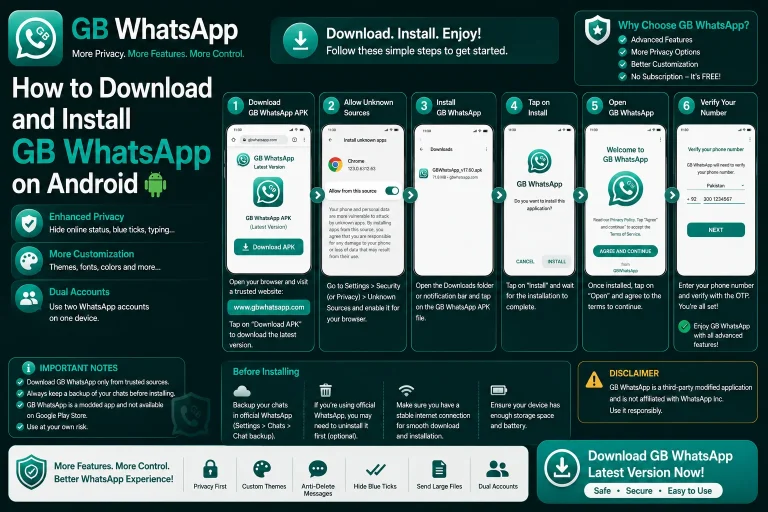
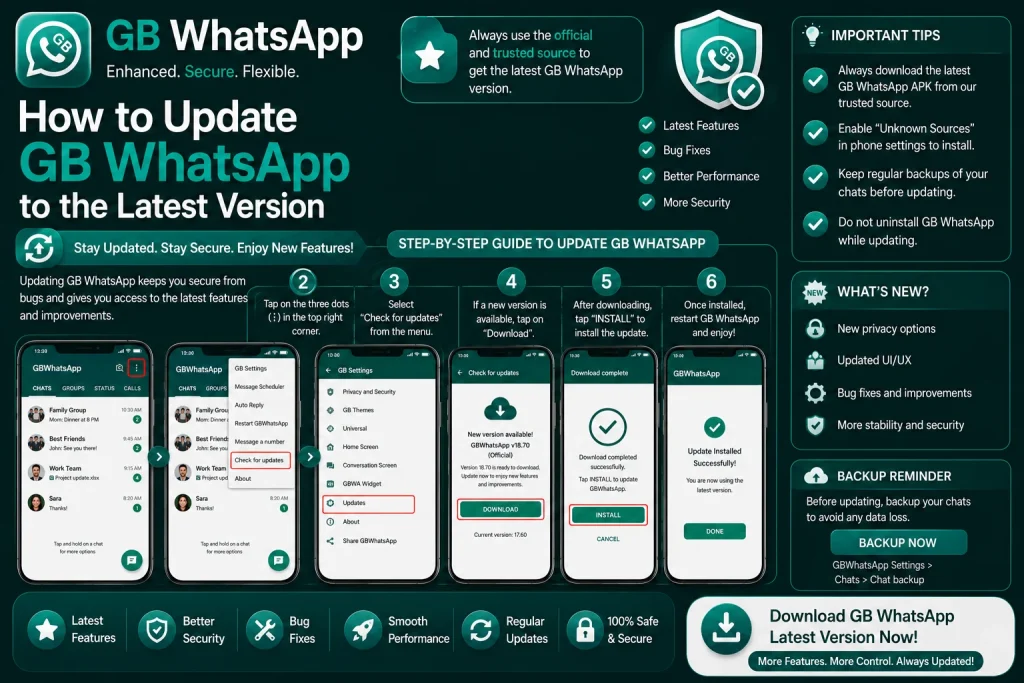
Updating GB WhatsApp is similar to the first install, but you do not need to uninstall the old version. The new APK overwrites the existing app while keeping your data, settings, and themes intact.
- Open the downloaded APK file from your notifications or file manager.
- Tap Install when prompted.
- Wait for the install to complete without closing the installer.
- Tap Open to launch the updated app.
- Verify your phone number if the app asks you to re-authenticate.
- Restore chats from your backup if the app does not pick them up automatically.
Most updates are seamless, and your chats appear exactly where you left them. If the app asks you to set up your profile from scratch, something went wrong, and you should restore from your backup.
What to Do After the Update Finishes
Once the new version is running, take a few minutes to verify everything is working correctly. The post-update checklist below catches the most common problems before they become bigger issues.
| Check | What to Look For |
|---|---|
| Chats restored | All conversations appear with media |
| Custom themes | Theme from before the update still applied |
| Privacy settings | Hide blue ticks, last seen still active |
| Anti-ban status | Mods menu shows active protection |
| GB Settings | All extra options still available |
| App lock | PIN, pattern, or fingerprint still works |
If any of these settings are missing or reset, walk through the GB Settings menu and re-enable them. Updates sometimes clear preferences, especially after a major version bump.
Troubleshooting Common Update Issues
Even with a smooth process, updates sometimes fail. The table below lists the most common problems and how to fix them quickly.
| Problem | Likely Cause | Fix |
|---|---|---|
| Install blocked | Unknown sources disabled | Re-enable the browser permission |
| Parse error | Corrupted or partial download | Re-download the APK file |
| Verification loop | Cache issue from old version | Clear app data and reverify |
| Lost chats | No backup before update | Restore from local backup |
| App crashes on launch | Incompatible mods | Reinstall a clean version |
| Ban after update | Old anti-ban patch | Install the newest build |
Best Practices for Smooth Updates
A few habits will make every future update painless and reduce the chance of a ban or data loss.
- Always back up chats before installing any new build.
- Read the changelog so you know what is new and what to expect.
- Update on a stable Wi-Fi connection to avoid partial downloads.
- Keep at least 500 MB of free storage for the install and cache.
- Do not delay updates for weeks because old versions get banned faster.
- Join the official Telegram or community channel to get update alerts first.
Following these habits keeps your install healthy and ensures you are always running the safest, most feature-complete build of GB WhatsApp available in 2026.
FAQs About Updating GB WhatsApp
How do I know when a new GB WhatsApp version is available?
You can check for new versions by visiting your trusted APK source and comparing the latest build number with the one installed on your phone. Many community Telegram channels also post update alerts the moment a new version is released.
Will updating GB WhatsApp delete my chats?
No, updating GB WhatsApp should not delete your chats. The new APK overwrites the old version while keeping your data, settings, and themes intact. To be safe, always create a local backup before starting the update process.
Can I update GB WhatsApp without losing my custom theme?
Yes, your custom theme is preserved during a normal update. However, if the update is a major version bump or the theme engine changes, some themes may reset. Re-apply your theme from the GB Settings menu if it disappears.
What happens if I skip GB WhatsApp updates for a long time?
Skipping updates increases your ban risk because old versions are easier for WhatsApp to detect. It also means you miss out on bug fixes, security patches, and new features. Always update to the latest build as soon as it is available.
Should I uninstall the old version before updating?
No, you do not need to uninstall the old version before updating. The new APK overwrites the existing app and keeps all your data. Uninstalling first would force you to verify your number again and lose your local backup.