How to Transfer WhatsApp Chats to GB WhatsApp
Switching from the official WhatsApp to GB WhatsApp is exciting, but the first question on every user’s mind is how to transfer old chats without losing years of conversations. The good news is that GB WhatsApp is designed to recognize official WhatsApp backups, so the process is straightforward if you follow the right steps. This guide walks you through the entire transfer, from preparing your backup to restoring your chats inside GB WhatsApp.
Why Transferring Chats Is a Common Concern
Official WhatsApp stores chat history in a protected database that is only readable by the official app. GB WhatsApp uses a similar but slightly different format, which is why the transfer is not as simple as copying a folder. The GB WhatsApp team built a restore tool that can read official backups, but only when the steps are done in the right order.
Skipping a step, using the wrong backup file, or trying to restore on the wrong folder path are the most common reasons chats fail to appear. A careful, step-by-step approach is the safest way to move your full chat history, including media, voice notes, and group conversations.
What You Need Before Starting the Transfer
Before you move a single file, gather everything you need. Rushing the transfer is the fastest way to lose data, so a quick prep step saves hours of frustration later.
- A working install of the official WhatsApp with all your chats.
- Enough free storage on your phone for a full backup.
- A file manager app that can show hidden folders.
- The latest GB WhatsApp APK downloaded and ready to install.
- Your phone number ready for verification inside GB WhatsApp.
If you have multiple Google accounts, decide which one you want to use for cloud backups inside GB WhatsApp. The app can use a different account than the official WhatsApp if you prefer to keep them separate.
Step One: Create a Fresh Local Backup in Official WhatsApp
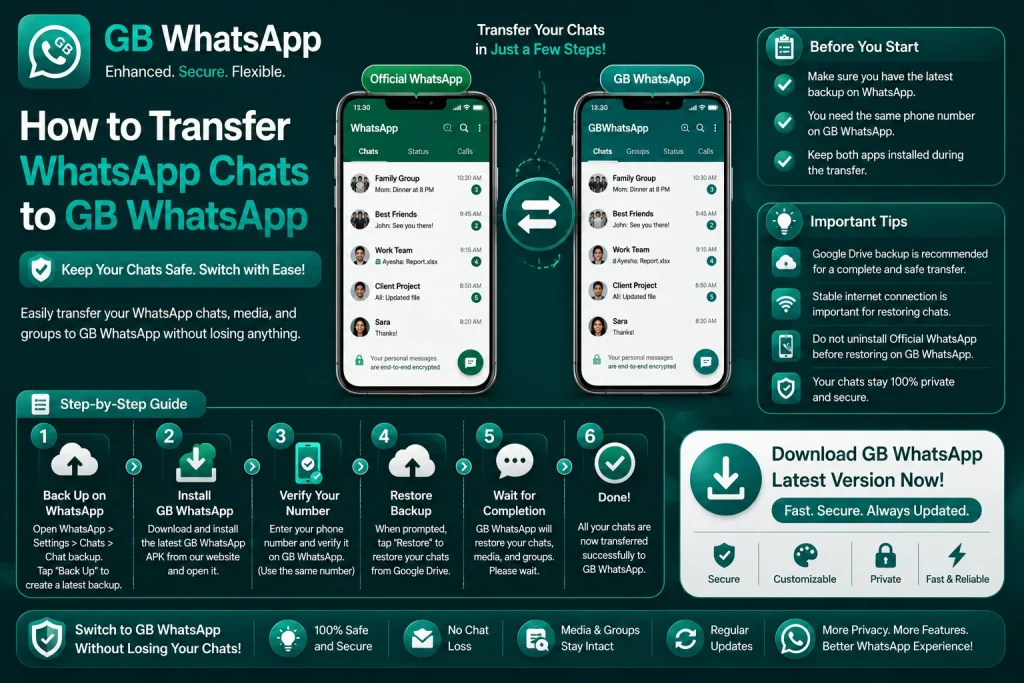
The transfer starts inside the official WhatsApp, where you create a fresh local backup of every chat, photo, video, and voice note. This backup is the file GB WhatsApp will read during the restore step.
- Open the official WhatsApp on your phone.
- Tap the three-dot menu and select Settings.
- Choose Chats, then Chat Backup.
- Tap Backup to save a fresh local copy.
- Wait for the backup progress bar to finish completely.
- Open your file manager and confirm the backup file exists.
The backup file is stored in a hidden folder, so make sure your file manager is set to show hidden files. You should see a file named msgstore.db.crypt14 or a similar version inside the WhatsApp Databases folder.
Step Two: Note Where the Official Backup Is Stored
GB WhatsApp needs to find the official backup during restore, and that only works if the folder path matches. By default, official WhatsApp stores backups at this location:
| Android Version | Default Backup Path |
|---|---|
| Android 10 and below | /storage/emulated/0/WhatsApp/Databases |
| Android 11 and above | /storage/emulated/0/Android/media/com.whatsapp/WhatsApp/Databases |
Open the path that matches your Android version and confirm the backup file is there. If you see the msgstore file, you are ready to move on to the GB WhatsApp install.
Step Three: Install GB WhatsApp Without Deleting Official WhatsApp
GB WhatsApp uses a different package name from the official app, so you can install it side by side. Do not uninstall the official WhatsApp yet, because GB WhatsApp needs to read its backup folder during restore.
- Open the downloaded GB WhatsApp APK file.
- Tap Install and wait for the process to finish.
- Tap Open to launch the app.
- Tap Agree and Continue on the welcome screen.
- Enter your phone number and verify via SMS or call.
- When the restore screen appears, tap Continue to look for the official backup.
The app will scan the default WhatsApp backup path and find the local backup you created. If the screen shows your chats and a timestamp that matches your latest backup, the transfer is working.
Step Four: Restore Your Chats Inside GB WhatsApp
Once GB WhatsApp detects the official backup, the restore is a single tap. The app reads the database, decrypts it with the same key WhatsApp uses, and rebuilds the chat list inside the new interface.
- Tap Restore when prompted.
- Wait for the restore progress bar to finish.
- Open a few conversations to confirm messages and media are intact.
- Reapply your custom theme and privacy settings if they reset.
- Create a new local backup inside GB WhatsApp once the restore completes.
If some media is missing, give the app a few minutes to finish copying files in the background. Large video backups can take a while to fully sync, especially on budget phones.
Step Five: Decide Whether to Keep the Official WhatsApp
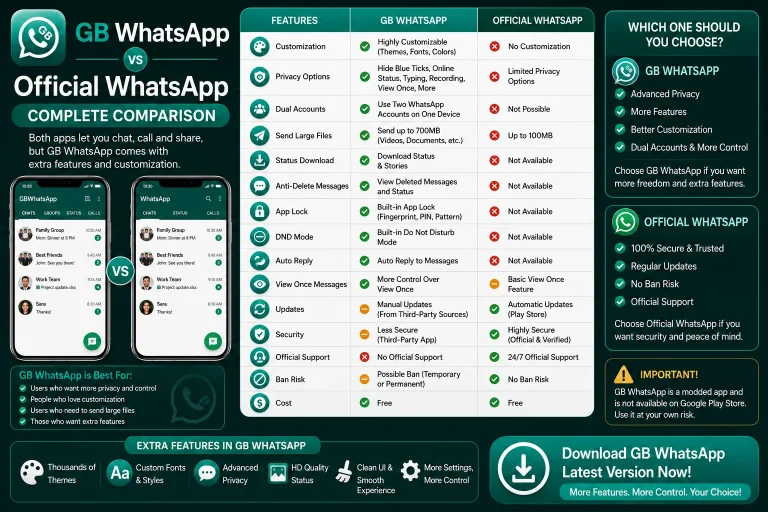
After the transfer is complete, you can choose to keep the official WhatsApp installed or remove it. Many users keep both apps side by side, with the official app on their primary number and GB WhatsApp on a secondary number.
| Option | When It Makes Sense |
|---|---|
| Keep both apps | You want two numbers on one phone |
| Uninstall official app | You only plan to use GB WhatsApp |
| Disable official app | You want a fallback in case of a ban |
If you uninstall the official app, your chat history is still safe inside GB WhatsApp as long as you have a local backup. You can always reinstall the official app later to access the original backup.
Common Transfer Issues and Fixes
Even with a careful setup, transfers sometimes fail. The table below covers the most common problems and how to fix them quickly.
| Problem | Cause | Fix |
|---|---|---|
| Restore screen not appearing | App did not detect backup | Manually select backup file from settings |
| Chats show but media missing | Wrong backup path | Move backup to default WhatsApp folder |
| Old chats not appearing | Stale backup | Create a fresh backup and retry |
| Restore button greyed out | Wrong phone number | Verify the same number used in official WhatsApp |
| App crashes after restore | Corrupted database | Reinstall GB WhatsApp and retry restore |
Best Practices for a Smooth Transfer
A few habits will make every future transfer painless and protect your data if something goes wrong.
- Always create a fresh backup in official WhatsApp right before transferring.
- Keep the official app installed until the restore is fully complete.
- Verify the backup timestamp inside GB WhatsApp matches your latest one.
- Make a copy of the backup folder before starting the transfer.
- Avoid using the phone during the restore to prevent background interruptions.
Following these steps gives you the best chance of moving every conversation, photo, and voice note to GB WhatsApp without losing a single message.
FAQs About Transferring WhatsApp Chats to GB WhatsApp
Can I transfer chats from official WhatsApp to GB WhatsApp without losing data?
Yes, you can transfer chats from official WhatsApp to GB WhatsApp without losing data by creating a local backup inside the official app, installing GB WhatsApp, and restoring from that backup. The app will detect the official database and rebuild your chat history during setup.
Do I need to uninstall the official WhatsApp before installing GB WhatsApp?
No, you do not need to uninstall the official WhatsApp before installing GB WhatsApp. The two apps use different package names, so they can run side by side. In fact, keeping the official app installed during the transfer helps GB WhatsApp locate the backup folder.
Where is the official WhatsApp backup stored on Android?
The official WhatsApp backup is stored in the WhatsApp Databases folder inside your phone’s internal storage. On Android 11 and above, the path is /storage/emulated/0/Android/media/com.whatsapp/WhatsApp/Databases. On older Android versions, it is /storage/emulated/0/WhatsApp/Databases.
Can I transfer GB WhatsApp chats back to the official WhatsApp?
No, you cannot transfer GB WhatsApp chats back to the official WhatsApp because the database formats are different. If you switch back to the official app, you will need to start with a fresh chat history unless you still have the original official backup.
How long does the chat transfer take?
The chat transfer usually takes between five and fifteen minutes, depending on the size of your backup and the speed of your phone. Large media-heavy backups can take up to thirty minutes, especially on devices with slower storage or limited RAM.