How to Use Dual WhatsApp Accounts on One Device
Running two WhatsApp accounts on the same phone is one of the most common reasons people install GB WhatsApp in the first place. Whether you want to separate work from personal chats, manage a business line alongside a personal number, or simply keep your main account safe, GB WhatsApp makes dual account use easy. This guide explains the different ways to set up two accounts on one Android device, the steps to configure each, and the best practices to keep both running smoothly.
Why Dual Accounts Are Useful in 2026
Most people today have more than one phone number. A personal SIM, a work SIM, a travel SIM, or a secondary number for online selling is no longer unusual. Carrying two phones just to keep both numbers active is inconvenient, expensive, and unnecessary. Dual WhatsApp accounts solve that problem by letting you run two numbers on the same device without juggling hardware.
GB WhatsApp has supported dual accounts for years, and the feature works alongside the official WhatsApp, inside GB WhatsApp through its built-in clone mode, and via Android’s native dual-messenger support. Each method has its own strengths, and the right choice depends on how you plan to use the second number.
Three Ways to Run Dual WhatsApp Accounts
GB WhatsApp supports three different dual-account setups. The table below compares them so you can pick the one that fits your needs.
| Method | How It Works | Best For |
|---|---|---|
| Official WhatsApp plus GB WhatsApp | Two separate apps, two numbers | Personal and work separation |
| GB WhatsApp clone mode | One app, two in-app profiles | Single app management |
| Android dual messenger | System-level clone of an app | Users who want to keep stock apps |
Most users go with the first option because it gives the cleanest separation between accounts and lets you run the official app alongside the modded one without any conflict.
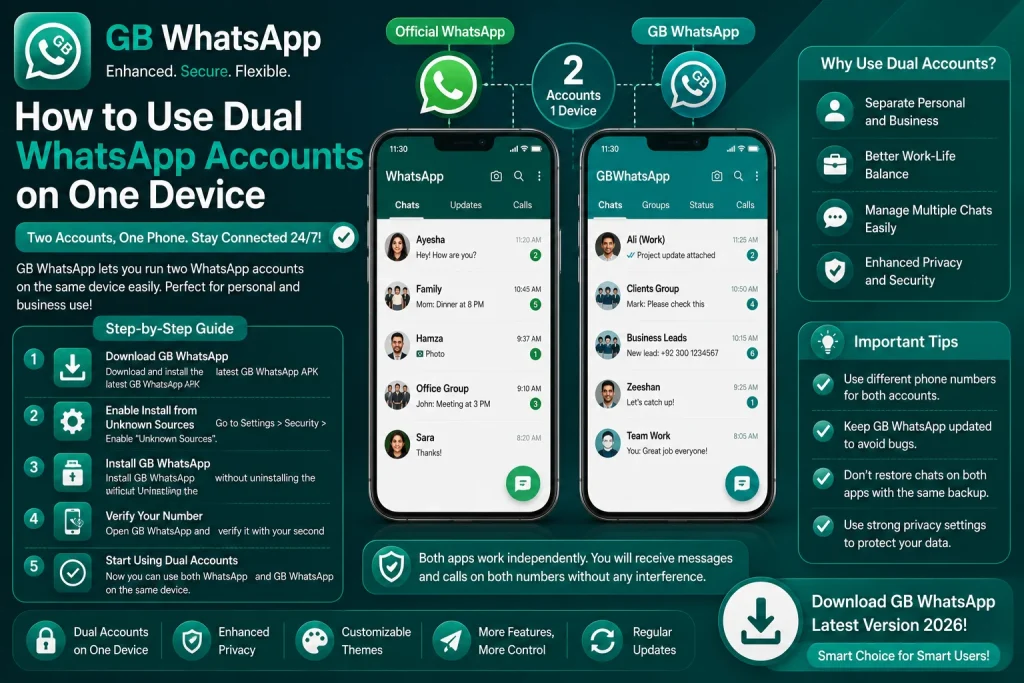
Method One: Official WhatsApp Plus GB WhatsApp
This is the most popular dual-account method because it uses two completely independent apps. The official WhatsApp runs on your primary number, while GB WhatsApp runs on your secondary number.
- Install the official WhatsApp from the Google Play Store.
- Verify your primary number and complete the setup.
- Download the latest GB WhatsApp APK from a trusted source.
- Install GB WhatsApp side by side with the official app.
- Verify your secondary number inside GB WhatsApp.
- Customize themes, privacy, and notification settings per app.
Both apps run independently, so notifications, message history, and contacts stay separate. You can even set different ringtones and vibration patterns to tell accounts apart without looking at the screen.
Method Two: GB WhatsApp Built-In Clone Mode
Recent versions of GB WhatsApp ship with a clone mode that lets you run two numbers inside the same app. This is useful if you only want one app icon on your home screen and prefer a unified inbox for both accounts.
- Open GB WhatsApp and go to GB Settings.
- Tap Dual Account or Clone Mode.
- Add your second number and verify via SMS or call.
- Switch between accounts using the in-app profile switcher.
- Customize notification sounds, themes, and privacy per account.
- Use the unified inbox or split view depending on your preference.
The clone mode is a clean solution for users who want a single app experience but still need two numbers active. The trade-off is that switching between accounts takes an extra tap compared to running two separate apps.
Method Three: Android’s Native Dual Messenger
Most modern Android phones ship with a built-in dual messenger feature that can clone supported apps. GB WhatsApp works with this system in most cases, although the official WhatsApp has more reliable support.
- Open your phone’s Settings app.
- Go to Apps and Notifications or Advanced Features.
- Find Dual Messenger or Clone Apps.
- Toggle the switch next to WhatsApp or GB WhatsApp.
- Confirm the clone installation.
- Open the cloned app and verify your second number.
This method is the simplest, but it has limitations. Some features inside GB WhatsApp may not work properly inside the cloned app, and the system clone does not always get the same permissions as the original install.
Setting Up Notifications and Sounds for Each Account
Once both accounts are running, the next step is making sure you can tell them apart at a glance. GB WhatsApp gives you full control over per-account notification settings, which is something the official app does not support.
- Open GB WhatsApp and go to GB Settings.
- Tap Notifications for each account.
- Set unique ringtones for messages, calls, and group alerts.
- Enable or disable vibration per account.
- Set different LED colors if your phone supports it.
- Use distinct notification patterns for work and personal chats.
This level of customization makes it easy to know which account is buzzing without unlocking your phone, which is a real productivity win for users who handle high message volumes.
Managing Storage When Running Two Accounts
Two WhatsApp accounts means double the media, double the voice notes, and double the documents. Storage can become a problem fast, especially on phones with 64 GB or less. The table below shows how to keep storage under control.
| Storage Tip | What It Does |
|---|---|
| Disable media auto-download | Stops images and videos from filling storage |
| Clear old chats monthly | Removes outdated conversations and media |
| Use external backup | Moves large files off your phone |
| Enable storage manager | Auto-clears media older than 30 days |
| Restrict per-chat media | Stops specific groups from auto-downloading |
Common Dual Account Issues and Fixes
Running two accounts is not always smooth. The table below lists the most common problems and how to fix them quickly.
| Issue | Cause | Fix |
|---|---|---|
| Notifications not coming for one account | Battery optimization | Whitelist both apps in battery settings |
| Second number not verifying | SMS delay | Use the call verification option |
| Storage filling up fast | Media auto-download | Disable auto-download for both apps |
| Theme applied to wrong account | Global theme override | Apply per-account theme in settings |
| App crashing on launch | Conflicting permissions | Reinstall the second app cleanly |
Best Practices for Dual WhatsApp Use
A few habits will keep both accounts running smoothly and protect your data across the board.
- Set different notification sounds so you can tell accounts apart instantly.
- Use the official app for your primary number and GB WhatsApp for secondary.
- Back up both accounts separately to avoid mixing chat histories.
- Keep both apps updated to avoid version mismatches.
- Label each app icon with a shortcut name so you never tap the wrong one.
Following these habits keeps your dual setup organized, secure, and easy to manage, even if you handle heavy message volumes on both numbers.
FAQs About Using Dual WhatsApp Accounts
Can I run two WhatsApp accounts on one phone without GB WhatsApp?
Yes, you can run two WhatsApp accounts on one phone without GB WhatsApp by using Android’s built-in dual messenger feature. However, the native clone is limited compared to GB WhatsApp, which gives you per-account themes, notification sounds, and privacy settings.
Is it safe to use the official WhatsApp and GB WhatsApp on the same device?
Yes, it is safe to use the official WhatsApp and GB WhatsApp on the same device because the two apps run in isolated sandboxes. Your chats, contacts, and media are stored separately, and there is no conflict between the two installs.
Do I need two SIM cards to use dual WhatsApp accounts?
No, you do not need two SIM cards to use dual WhatsApp accounts. You can verify the second number through a VoIP service, a temporary SIM, or a landline that supports SMS. The app only needs a working phone number for one-time verification.
Can I use the same phone number on both apps?
No, you cannot use the same phone number on both apps at the same time. Each app requires a unique phone number for verification. Trying to register the same number twice will fail and may trigger a temporary ban from WhatsApp’s anti-abuse system.
How do I switch between dual accounts quickly?
You can switch between dual accounts by tapping the profile switcher inside GB WhatsApp, or by using the in-app floating widget. For two separate apps, you simply switch between the two app icons on your home screen, just like any other Android app.