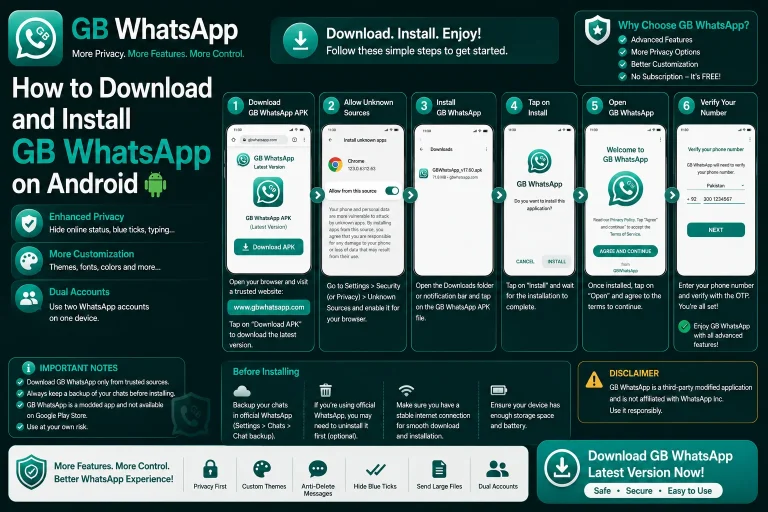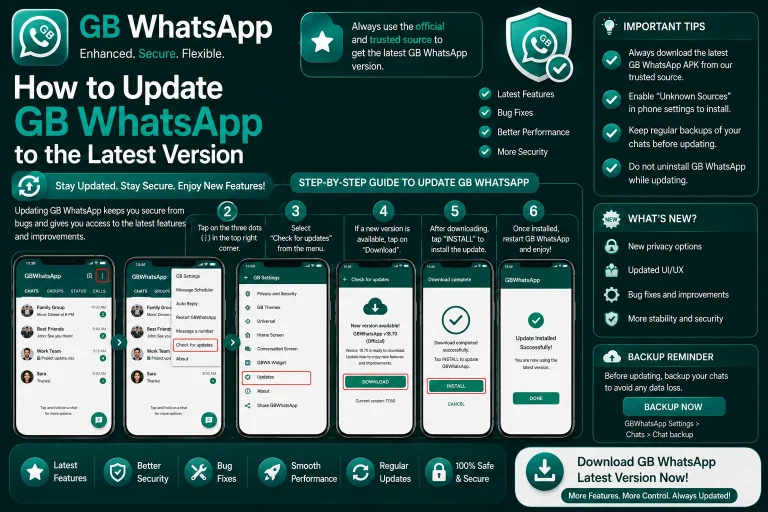
How to Back Up and Restore GB WhatsApp Chats
Backing up your GB WhatsApp chats is the most reliable way to protect years of conversations, media, and group data from being lost. Because GB WhatsApp is a modded APK, the backup process is slightly different from the official WhatsApp and includes extra options. This guide explains every method available, from local storage to Google Drive, and shows you how to restore chats on a new phone or after a fresh install.
Why Backups Matter More on GB WhatsApp
GB WhatsApp users face a unique set of risks that make regular backups essential. The app is not on the Play Store, so a phone reset, an accidental uninstall, or a botched update can wipe your data without any cloud sync in place. WhatsApp bans are also a real possibility, and if your number gets banned, the only way to keep your chat history is through a local backup you control.
Unlike the official app, GB WhatsApp gives you full control over where your backups live. You can save them locally, push them to Google Drive, or copy them to an external drive or computer. This flexibility makes it easy to set up a backup routine that fits your habits.
Types of Backups Available in GB WhatsApp
GB WhatsApp supports three main backup types, each with its own strengths. The table below compares them so you can pick the one that fits your needs.
| Backup Type | Storage Location | Auto Schedule | Best For |
|---|---|---|---|
| Local backup | Phone storage | Manual | Quick offline snapshots |
| Google Drive backup | Google account | Daily or weekly | Easy restore on new phone |
| External backup | Computer or SD card | Manual | Long-term archival |
Most users combine local and Google Drive backups for the best balance of safety and convenience. The local copy gives you instant access even without internet, while the cloud copy protects against phone loss or damage.
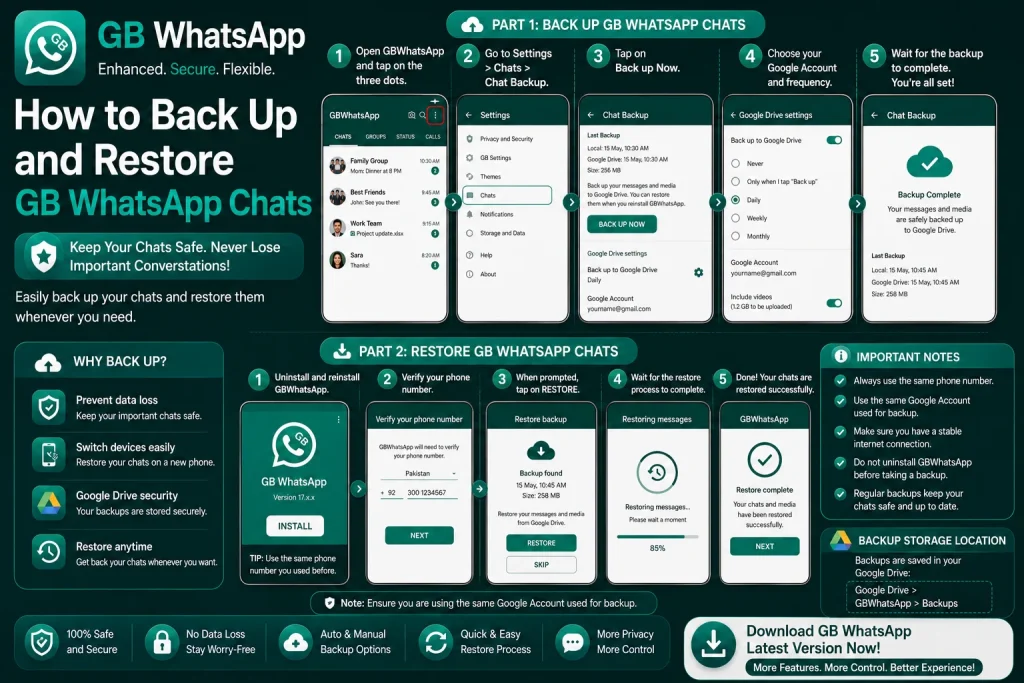
How to Create a Local Backup
Local backups are the fastest and most reliable way to save your chats. They live inside a folder on your phone’s internal storage and can be copied anywhere you want.
- Open GB WhatsApp and tap the three-dot menu in the top right.
- Select GB Settings or Mods from the menu list.
- Tap Backup and Restore.
- Choose Local Backup to start the process.
- Wait for the progress bar to finish.
- Open your file manager and navigate to the GB WhatsApp folder.
- Copy the entire Databases folder to your computer or SD card.
Once the copy is done, you have a complete snapshot of every chat, media file, voice note, and group conversation stored outside your phone.
How to Set Up Google Drive Backup
Google Drive backup is useful when you want to restore chats on a new device without manually copying files. GB WhatsApp can push a backup to the same Google account that your official WhatsApp uses, or to a different account if you prefer separation.
- Open GB WhatsApp and go to GB Settings.
- Tap Backup and Restore, then Google Drive Settings.
- Sign in with your Google account if you have not already.
- Choose a backup frequency from daily, weekly, or monthly.
- Select whether to include videos in the cloud backup.
- Tap Backup Now to push your first copy to Drive.
Once enabled, GB WhatsApp will automatically push fresh backups based on the schedule you picked. You can also tap Backup Now any time you want an extra snapshot.
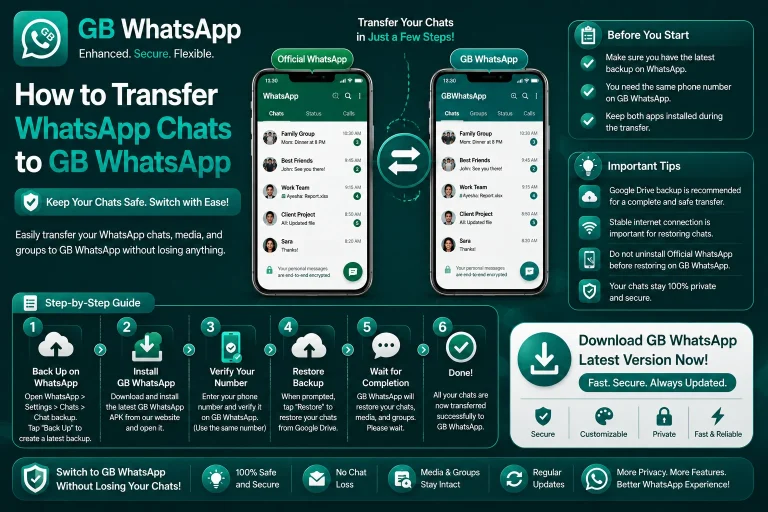
How to Restore Chats on the Same Phone
Restoring chats on the same device is the most common scenario and usually happens right after an update or a clean reinstall.
- Reinstall GB WhatsApp or open the freshly updated app.
- Verify your phone number when prompted.
- When asked to restore, tap Restore.
- Wait for the chats and media to load.
- Open a few conversations to confirm messages and files are intact.
- Reapply your custom theme and privacy settings if they reset.
If the restore prompt does not appear, the app may not have detected your backup folder. Open GB Settings, tap Backup and Restore, and point the app to the correct local backup file.
How to Restore Chats on a New Phone
Moving to a new phone is where a good backup really pays off. The process is similar to restoring on the same device, but you need to copy your backup files to the new phone first.
- Copy the GB WhatsApp Databases folder from your old phone to your computer.
- Transfer the folder to the new phone’s internal storage.
- Install GB WhatsApp on the new phone and verify your number.
- When the restore screen appears, tap Restore and point to the folder.
- Wait for the chats to load and verify your media.
- Sign in to Google Drive if you want cloud backups enabled on the new device.
If you used Google Drive backups, the restore happens automatically as soon as you verify your number. Local backups require the manual file copy described above.
Common Backup Issues and Fixes
Backups can fail for a handful of reasons. The table below covers the most common problems and how to fix them quickly.
| Issue | Cause | Fix |
|---|---|---|
| Backup folder not found | Wrong path or hidden folder | Enable hidden files in file manager |
| Google Drive upload fails | Account not signed in | Sign in again and retry |
| Videos missing in restore | Videos excluded from backup | Re-enable video inclusion in settings |
| Restore stuck at zero | Insufficient storage | Free up space and retry |
| Old backup overwritten | New backup saved over old one | Keep multiple dated copies |
Best Practices for Safe Backups
A solid backup routine protects you from data loss, bans, and accidental deletes. These habits will keep your chats safe no matter what happens.
- Create a local backup before every GB WhatsApp update.
- Schedule a weekly Google Drive backup in addition to local copies.
- Keep at least three dated backup copies in different locations.
- Verify your backup by restoring it on a spare device at least once.
- Never store backups in the same folder as the app to avoid overwrites.
- Encrypt sensitive chats before backup if you share your phone.
Following these habits makes your data nearly impossible to lose, even if your phone breaks, gets stolen, or triggers a ban.
FAQs About Backing Up and Restoring GB WhatsApp
Where are GB WhatsApp backups stored on my phone?
GB WhatsApp backups are stored in the internal storage under the GB WhatsApp folder, inside a subfolder called Databases. The folder contains dated backup files plus a copy of your media, voice notes, and shared documents.
Can I restore GB WhatsApp chats on the official WhatsApp?
No, you cannot restore a GB WhatsApp backup on the official WhatsApp because the two apps use different folder structures and database formats. If you switch back to the official app, you will need to start with a fresh chat history.
How often should I back up my GB WhatsApp chats?
You should back up your chats at least once a week, or more often if you handle important conversations. Power users who send a lot of media often set up daily backups to make sure nothing is ever lost.
Can I move a GB WhatsApp backup to a new phone?
Yes, you can move a GB WhatsApp backup to a new phone by copying the Databases folder from your old phone to the new device’s internal storage. Once installed, GB WhatsApp will detect the folder and let you restore your chats during setup.
What happens to my backup if I get banned?
Your local backup remains safe even if you get banned because the files live on your phone or in your cloud storage. Bans affect your account, not your backup files, so you can reinstall GB WhatsApp with a new number and still access your old chat history.