How to Hide Online Status on GB WhatsApp
Online status is one of the most revealing signals on any messaging app. The moment you open WhatsApp, your contacts can see that you are active, and that single green dot often leads to unwanted messages. GB WhatsApp solves this problem with advanced privacy controls that let you appear offline even when you are actively using the app. This guide explains how to hide your online status on GB WhatsApp, the different options available, and the best practices to stay invisible without breaking core features.
Why Hiding Online Status Matters in 2026
Online presence has become a social currency. People check WhatsApp to see who is around, who is free to chat, and who is ignoring their messages. For some users, that pressure is uncomfortable. For others, it is a privacy risk that exposes daily routines, work patterns, and personal habits.
Hiding your online status lets you use WhatsApp on your own terms. You can read messages, reply at your pace, and stay active in groups without broadcasting your availability to every contact. GB WhatsApp makes this possible through a dedicated privacy menu that goes far beyond the official app.
Online Status Options in GB WhatsApp
GB WhatsApp gives you several options for controlling how your online status appears. The table below explains each one so you can pick the right setup.
| Option | What It Does | Best For |
|---|---|---|
| Hide for everyone | Makes you appear offline to all contacts | Maximum privacy |
| Hide for selected contacts | Hides status from a custom list | Selective privacy |
| Show to selected contacts | Hides from everyone except a custom list | Trusted circle |
| Keep showing normally | Standard online presence | Users who do not need privacy |
The most common setup is Hide for everyone, because it gives you complete control over your availability. Some users combine it with selective contact lists to make exceptions for close friends or family.
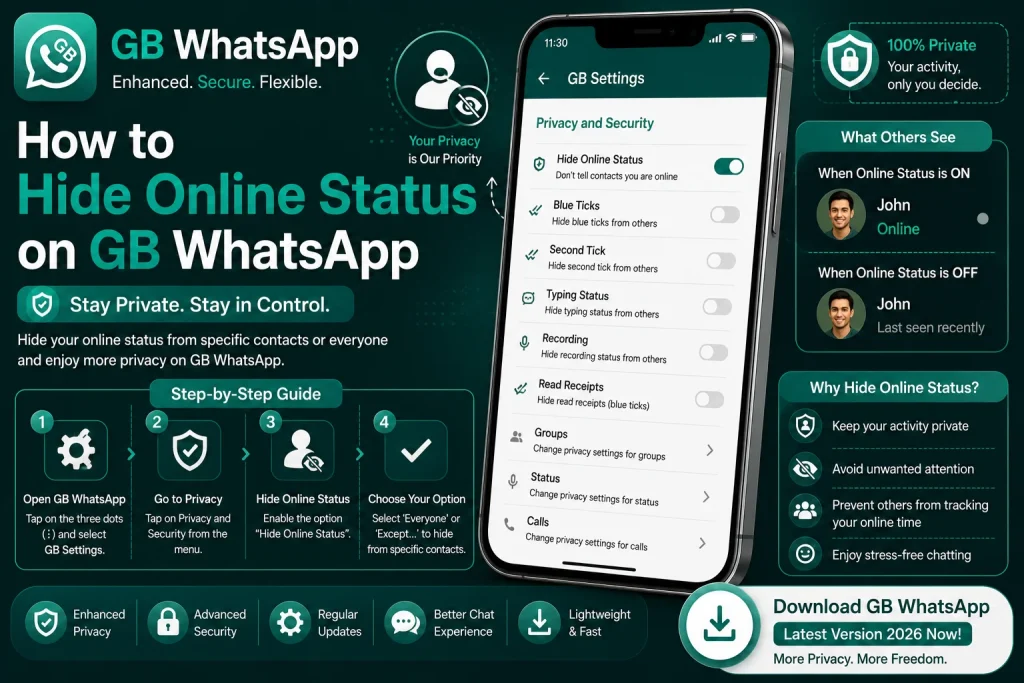
How to Hide Online Status From Everyone
The Hide for everyone option is the most popular privacy setting in GB WhatsApp. Once enabled, no contact can see that you are online, even if you are actively typing a reply.
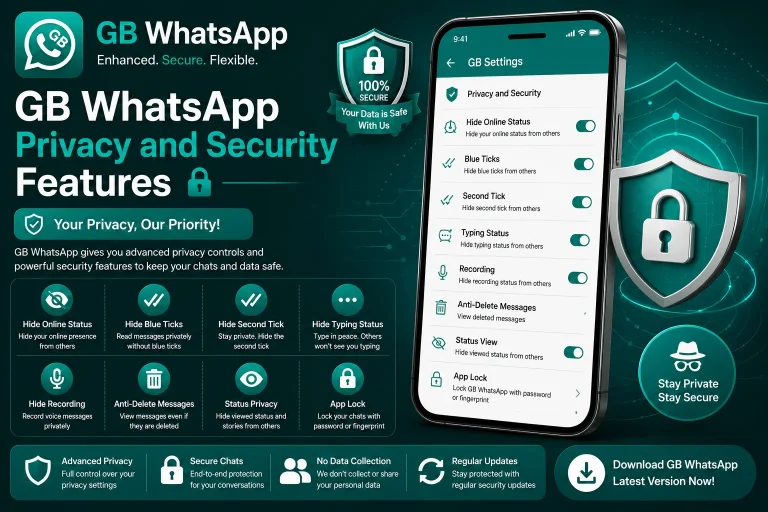
- Open GB WhatsApp and tap the three-dot menu in the top right.
- Select GB Settings or Mods from the menu.
- Tap Privacy and Security.
- Find Online Status and tap it.
- Choose Hide for Everyone.
- Restart the app to apply the change.
After restarting, your contacts will see your last seen timestamp instead of a live online status. The app will continue to work normally in the background, including sending and receiving messages.
How to Hide Online Status From Specific Contacts
If you want to stay invisible to most people but appear online for a few close contacts, GB WhatsApp lets you build a custom privacy list. This is useful for users who want to be reachable for family but hidden from everyone else.
- Open GB WhatsApp and go to GB Settings.
- Tap Privacy and Security, then Online Status.
- Select Hide for Selected Contacts.
- A contact picker will open.
- Choose the people you want to hide your online status from.
- Tap Save and restart the app.
The selected contacts will see you as offline, while everyone else will see your normal online status. You can edit this list any time without restarting the app.
How to Show Online Status Only to Specific Contacts
The inverse option is also available. You can hide your online status from everyone except a hand-picked list. This is the strictest privacy mode, often used by users who want to stay invisible to the public while remaining reachable for work or family emergencies.
- Open GB WhatsApp and go to GB Settings.
- Tap Privacy and Security, then Online Status.
- Select Show to Selected Contacts Only.
- Pick the contacts who are allowed to see your online status.
- Tap Save and restart the app to apply the change.
This setup is perfect for users who want to chat freely with a small trusted circle without broadcasting availability to the rest of their contact list.
How Hiding Online Status Affects Other Features
Hiding your online status does not turn off the entire app. Most features continue to work normally, including message sending, group chats, and status updates. The table below shows how key features behave when you appear offline.
| Feature | Behavior When Online Status Hidden |
|---|---|
| Send messages | Works normally |
| Receive messages | Works normally |
| Read messages | Works, but blue ticks can also be hidden |
| Status updates | Visible to your contacts as usual |
| Voice and video calls | Ringing shows your number, not online status |
| Typing indicator | Can be hidden separately |
Hiding online status is independent from other privacy settings, so you can combine it with hiding blue ticks, last seen, and typing indicators for full stealth mode.
Common Issues When Hiding Online Status
Sometimes users notice small quirks after enabling the hide online feature. The table below lists the most common issues and how to fix them.
| Issue | Cause | Fix |
|---|---|---|
| Status still shows online | App needs a restart | Close and reopen GB WhatsApp |
| Cannot see others online | Reciprocal privacy active | Enable the option to view others online |
| Friends notice ghost online | Network caching | Wait five to ten minutes for sync |
| Settings reset after update | App re-applied defaults | Re-enable privacy after each update |
Best Practices for Online Status Privacy
A few small habits will make your privacy setup more reliable and prevent accidental reveals.
- Always restart the app after changing privacy settings.
- Combine hide online with hide blue ticks and hide last seen for full stealth.
- Review your privacy list every few weeks to remove outdated contacts.
- Avoid sharing screenshots that show your active timestamps.
- Keep GB WhatsApp updated to the latest version for stable privacy modules.
Following these habits keeps your online presence under your control and prevents accidental status leaks during updates or network changes.
FAQs About Hiding Online Status on GB WhatsApp
Can I hide my online status on the official WhatsApp?
No, the official WhatsApp does not let you hide your online status. It only lets you hide your last seen timestamp. GB WhatsApp is the only way to hide live online presence while continuing to use WhatsApp normally.
Will hiding online status block me from sending messages?
No, hiding online status does not block you from sending messages. The app continues to work normally in the background, and your contacts will only see your last seen timestamp instead of a live online indicator.
Can people tell that I am using GB WhatsApp if I hide online status?
No, hiding online status does not reveal that you are using GB WhatsApp. The privacy setting works silently, and your contacts will simply see you as offline. There is no visible indicator that you are running a modded app.
Does hiding online status affect group chats?
Hiding online status affects how you appear in both private and group chats. Group members will see you as offline, but you can still read messages, reply, and react normally. Some builds of GB WhatsApp also let you hide online status per group.
Can I re-enable online status temporarily without losing other privacy settings?
Yes, you can toggle online status on and off as often as you want without losing your other privacy settings. Blue ticks, last seen, and typing indicators remain untouched when you change the online status option.