How to Hide Blue Ticks and Read Receipts
Blue ticks are one of the most debated features in WhatsApp. The moment you open a message, the sender sees two blue checkmarks, and that small visual cue often leads to pressure to reply. GB WhatsApp solves the problem with advanced read receipt controls that go far beyond the official app. This guide explains how to hide blue ticks, freeze last seen, and control read receipts per chat so you can read messages on your own schedule.
Why Hiding Blue Ticks Is a Privacy Essential
In a world where instant replies are expected, the blue tick has become a social contract. People watch for it, and the longer it takes to appear, the more likely they are to send follow-up messages. For users who value their time, mental space, and personal boundaries, hiding blue ticks is more than a feature, it is a relief.
GB WhatsApp does not just remove the blue ticks. It also lets you decide who sees your read receipts, when read receipts are sent, and whether typing indicators and second ticks are also hidden. This level of control is the reason millions of users install the modded app.
Blue Tick Options Available in GB WhatsApp
GB WhatsApp offers multiple options for controlling how read receipts behave. The table below breaks down each option so you can pick the right combination.
| Option | What It Does | Best For |
|---|---|---|
| Hide for everyone | No one sees blue ticks | Maximum privacy |
| Hide for selected contacts | Hides from a custom list | Selective invisibility |
| Show to selected contacts | Hides from everyone except a list | Trusted circle |
| Freeze last seen | Keeps timestamp static | Disappearing online |
| Always show | Normal read receipt behavior | Users who do not need privacy |
The most common setup is Hide for everyone combined with freeze last seen, which makes the account appear completely inactive even when the user is actively reading messages.
How to Hide Blue Ticks From Everyone
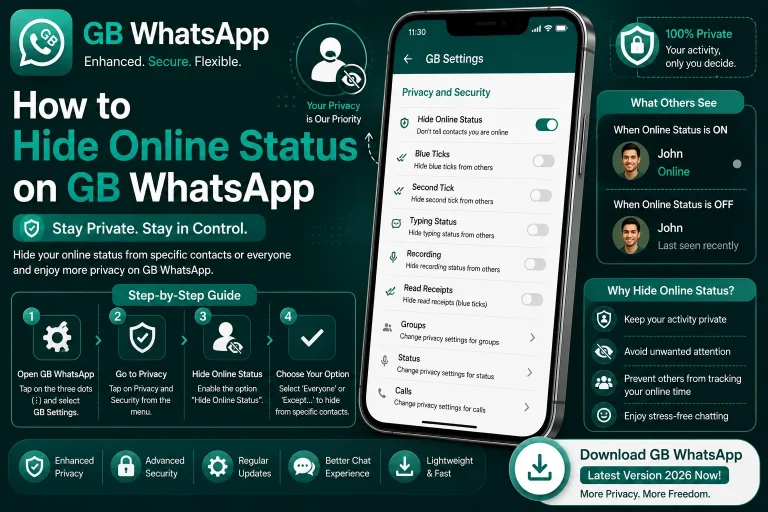
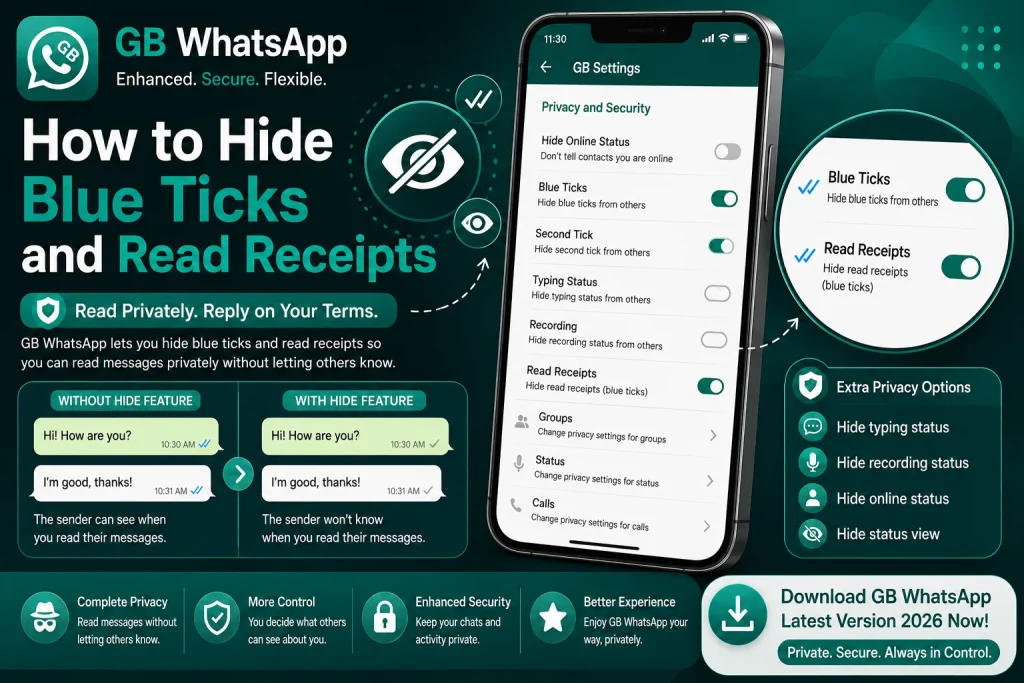
Hiding blue ticks from everyone is the most popular privacy setting in GB WhatsApp. Once enabled, the sender will only see two grey ticks even after you have read the message.
- Open GB WhatsApp and tap the three-dot menu.
- Select GB Settings or Mods.
- Tap Privacy and Security.
- Find Blue Ticks and tap it.
- Choose Hide for Everyone.
- Restart the app to apply the change.
After restarting, any message you open will not trigger blue ticks. The sender will continue to see grey ticks, which indicate the message was delivered to your phone but not yet read.
How to Hide Blue Ticks From Specific Contacts
If you want to hide blue ticks from most people but allow them for close friends or family, GB WhatsApp lets you build a custom privacy list.
- Open GB WhatsApp and go to GB Settings.
- Tap Privacy and Security, then Blue Ticks.
- Select Hide for Selected Contacts.
- Pick the people you want to hide blue ticks from.
- Tap Save and restart the app to apply the change.
The selected contacts will not see blue ticks even after you read their messages, while everyone else will see the normal read receipts. This is a popular setup for users who want to ignore work chats while staying responsive to personal contacts.
How to Show Blue Ticks Only to Specific Contacts
The inverse option is also available. You can hide blue ticks from everyone except a hand-picked list. This is the strictest privacy mode and is often used by users who want to chat freely with a small trusted circle.
- Open GB WhatsApp and go to GB Settings.
- Tap Privacy and Security, then Blue Ticks.
- Select Show to Selected Contacts Only.
- Choose the contacts who are allowed to see blue ticks.
- Tap Save and restart the app.
This setup is perfect for users who want full stealth from the public while remaining visible to a small group of close friends or family members.
What Freeze Last Seen Does and How to Use It
Freeze last seen is a unique feature that keeps your last seen timestamp static. Instead of showing the real time you were last online, the app displays a fixed time you set manually. This feature is useful for users who want to appear offline without disabling the app entirely.
- Open GB WhatsApp and go to GB Settings.
- Tap Privacy and Security, then Last Seen.
- Select Freeze Last Seen.
- Set a custom timestamp you want to display.
- Save the change and restart the app.
Once enabled, every contact will see the frozen timestamp, even if you are actively using the app. This feature is often combined with hide blue ticks for full stealth mode.
How Read Receipts Behave in Group Chats
Group chats work slightly differently from private chats. By default, WhatsApp sends read receipts to every group member when you read a message, which means hiding blue ticks affects the entire group. The table below shows how GB WhatsApp handles this.
| Group Setting | Behavior |
|---|---|
| Hide blue ticks globally | All group members see grey ticks |
| Per-group override | Some groups can see blue ticks |
| Admin-only read receipts | Only group admins see your read status |
| Always show in groups | Read receipts sent normally |
Per-group overrides are useful for users who want to hide from most people but stay visible in specific work or family groups where read receipts matter.
Common Issues When Hiding Blue Ticks
Hiding blue ticks usually works smoothly, but a few small issues can pop up. The table below covers the most common problems and how to fix them.
| Issue | Cause | Fix |
|---|---|---|
| Blue ticks still appearing | App needs a restart | Close and reopen GB WhatsApp |
| Cannot see others blue ticks | Reciprocal privacy active | Enable the option to view others blue ticks |
| Read receipts reset after update | Defaults reapplied | Re-enable blue tick privacy after each update |
| Voice messages show as read | Voice blue tick is separate | Disable voice blue ticks in advanced settings |
Best Practices for Read Receipt Privacy
A few habits will make your read receipt setup more reliable and prevent accidental reveals.
- Always restart the app after changing blue tick settings.
- Combine hide blue ticks with hide last seen and hide online for full stealth.
- Re-enable blue ticks temporarily for important conversations if needed.
- Review your privacy list every few weeks to remove outdated contacts.
- Keep GB WhatsApp updated to the latest version for stable privacy modules.
Following these habits keeps your read status invisible to the people you want to hide from, while still letting you read messages and reply at your own pace.
FAQs About Hiding Blue Ticks and Read Receipts
Can I hide blue ticks on the official WhatsApp?
No, the official WhatsApp does not let you hide blue ticks. It only lets you turn off read receipts entirely, which also means you cannot see blue ticks from other people. GB WhatsApp is the only way to hide your blue ticks while still seeing other people’s.
Does hiding blue ticks affect voice messages?
By default, hiding blue ticks applies to both text and voice messages. However, GB WhatsApp has a separate setting for voice message blue ticks that lets you hide them independently. You can find this option in the advanced privacy menu.
Will people know that I read their message if I hide blue ticks?
No, the sender will not know that you read their message if you hide blue ticks. The ticks will remain grey, and the sender cannot tell whether the message was delivered late, ignored, or read without a response.
Can I hide blue ticks in some chats and show them in others?
Yes, GB WhatsApp lets you build a custom privacy list for blue ticks. You can hide them from selected contacts, show them only to selected contacts, or apply the setting globally. The list can be edited any time without affecting the rest of the app.
Does hiding blue ticks work in group chats?
Yes, hiding blue ticks works in both private and group chats. By default, the setting applies to all groups, but GB WhatsApp also supports per-group overrides so you can stay visible in specific groups while hiding from the rest.