How to Customize Themes in GB WhatsApp
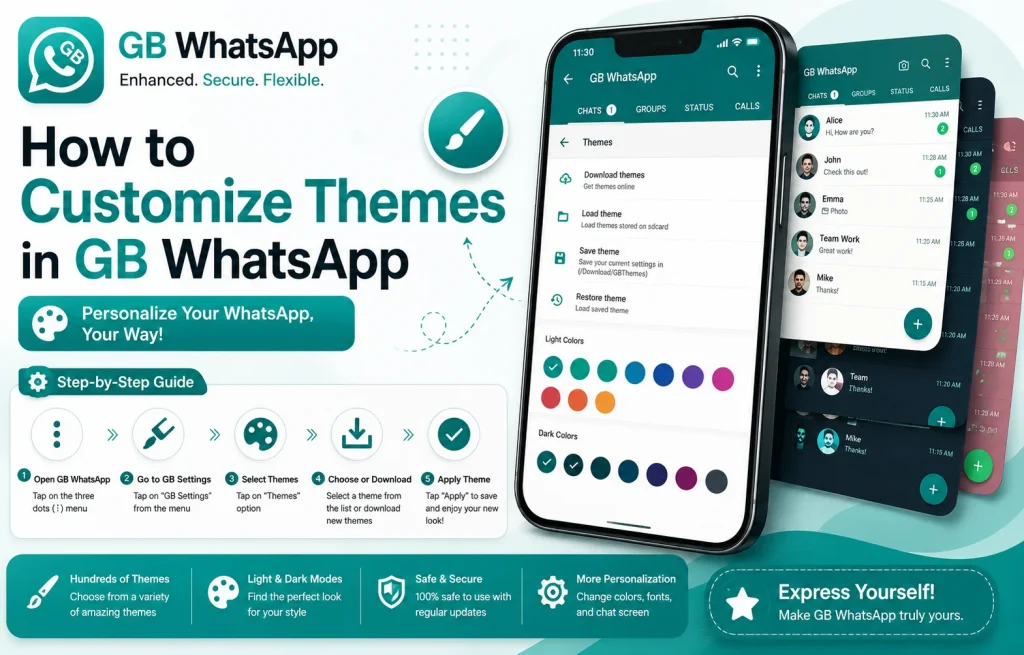
Customization is the heart of GB WhatsApp, and themes are the single most popular way to make the app feel personal. The official WhatsApp offers only a light and dark mode, but GB WhatsApp ships with thousands of community themes, custom fonts, color overrides, and per-chat styling options. This guide explains how to browse, apply, and create themes in GB WhatsApp, and the best practices for getting the look you want.
Why Themes Matter More Than You Think
Most users underestimate how much a theme can change the daily feel of a messaging app. A dark theme saves battery on AMOLED screens, a light theme is easier to read outdoors, and a custom theme can make the app feel like an extension of your personality. Beyond looks, themes also affect readability, contrast, and accessibility.
GB WhatsApp treats themes as a first-class feature. You are not limited to a few built-in options, you can pick from thousands of community designs, import your own, and even apply different themes to individual chats. That level of control is what makes GB WhatsApp the most customizable WhatsApp client on Android.
What You Can Customize in GB WhatsApp
The theme engine in GB WhatsApp is built on a layered system. The table below breaks down each layer so you can understand how the styles stack together.
| Layer | What It Controls | Example |
|---|---|---|
| Base theme | Overall app color and layout | Dark, light, AMOLED black |
| Accent color | Buttons, ticks, highlights | Blue, green, red |
| Font | Text style across the app | Roboto, handwriting, serif |
| Bubble style | Chat bubble shape and color | Rounded, square, gradient |
| Status bar | Top bar color and icons | Solid, transparent, gradient |
| Per-chat theme | Style for a single conversation | Work group vs personal chat |
Each layer can be adjusted independently, which means you can mix styles from different themes without losing consistency.
How to Apply a Theme From the Built-In Store
The built-in store is the easiest way to get started with themes. It is filled with thousands of community uploads and refreshed regularly with trending designs.
- Open GB WhatsApp and go to GB Settings.
- Tap Themes.
- Browse trending, new, or category-based collections.
- Tap any theme to preview it instantly.
- Swipe between colors and accents to test variations.
- Tap Apply to set the theme as your default.
- Restart the app to load all elements.
The preview mode lets you see exactly how a theme will look on your chats before you commit, which is a major improvement over the old days of blind installs.
How to Apply a Per-Chat Theme
Per-chat themes are one of GB WhatsApp’s most loved features. You can apply a different theme to individual contacts or groups, which is useful for separating work, family, and personal conversations visually.
- Open the chat you want to customize.
- Tap the contact or group name at the top.
- Scroll down and tap Theme.
- Pick a theme from your library or browse the store.
- Tap Apply to This Chat.
- Repeat the process for any other chat you want to style.
Per-chat themes override the global default, but you can still see your main theme on the home screen, settings, and unstyled chats.
How to Change Fonts and Text Style
GB WhatsApp supports custom fonts beyond the default Roboto. You can pick from handwriting, calligraphy, monospace, and dozens of community-uploaded fonts.
- Open GB WhatsApp and go to GB Settings.
- Tap Themes, then Fonts.
- Browse the font library or import a custom TTF file.
- Tap any font to preview it in the chat window.
- Tap Apply to set the font globally or per chat.
- Adjust font size under Display Settings if needed.
Custom fonts work across the entire interface, including chat bubbles, status updates, and the contact list.
How to Customize Bubble Styles and Accent Colors
Bubble styles and accent colors are the small details that make a theme feel truly custom. GB WhatsApp lets you adjust each independently so you can build your own variations.
- Open GB WhatsApp and go to GB Settings.
- Tap Themes, then Bubble Style.
- Pick a shape from rounded, square, or teardrop.
- Choose a fill color, gradient, or transparent option.
- Tap Accent Color and pick a custom hex code or preset.
- Apply the changes and preview the new look in any chat.
These small tweaks can transform a theme from average to unique without writing a single line of code.
How to Import a Custom Theme File
If you have a theme file downloaded from a community forum or shared by a friend, you can import it directly into GB WhatsApp. Theme files usually come in a .zip or .gbtheme format.
- Download the theme file to your phone storage.
- Open GB WhatsApp and go to GB Settings.
- Tap Themes, then Import.
- Browse to the folder containing the theme file.
- Tap the file to preview it.
- Tap Apply to install the theme.
Imported themes appear in your library alongside the built-in store, so you can apply them globally or to individual chats just like any other theme.
How to Create Your Own Theme
Advanced users can build their own theme from scratch. GB WhatsApp includes a basic theme editor that lets you adjust colors, fonts, and bubble styles, then export the result as a shareable file.
- Open GB WhatsApp and go to GB Settings.
- Tap Themes, then Create Theme.
- Pick a base style to start from.
- Adjust accent colors, fonts, bubble styles, and status bar.
- Preview the theme in the test chat window.
- Tap Save and name your theme.
- Tap Export to share it with friends or upload to the community.
Creating a theme is the best way to get a completely unique look, and it is the foundation of the GB WhatsApp theme community.
Best Practices for Customizing Themes
A few habits will make your theme setup look polished and avoid common mistakes.
- Pick a theme that matches your phone’s wallpaper for a unified look.
- Use per-chat themes to separate work and personal conversations.
- Test themes in both light and dark mode to check readability.
- Avoid overly bright accents that drain battery on AMOLED screens.
- Export your custom theme as a backup before updating GB WhatsApp.
- Refresh your theme every few months to keep the interface feeling new.
Following these habits ensures your GB WhatsApp setup looks great, runs smoothly, and stays personal no matter how often you change phones.
FAQs About Customizing GB WhatsApp Themes
Are GB WhatsApp themes free to use?
Yes, the built-in theme store includes thousands of free community themes that you can apply with one tap. Some independent creators offer premium themes for a small fee, but the default library is completely free and refreshed weekly.
Can I apply different themes to individual chats?
Yes, GB WhatsApp supports per-chat themes. Open the chat, tap the contact name, and choose Theme. You can pick any theme from your library and apply it to that specific conversation without affecting the rest of the app.
How do I import a custom theme file into GB WhatsApp?
You can import a custom theme file by downloading it to your phone storage, opening GB WhatsApp, going to GB Settings, and tapping Themes, then Import. Browse to the file, preview it, and tap Apply to install.
Can I create my own theme in GB WhatsApp?
Yes, GB WhatsApp includes a theme editor that lets you create a custom theme from scratch. You can adjust colors, fonts, bubble styles, and accents, then export the result as a shareable file that you can send to friends or upload to the community.
Will updating GB WhatsApp remove my custom theme?
No, updating GB WhatsApp should not remove your custom theme, but major version bumps sometimes reset theme preferences. To be safe, export your custom theme as a backup file before installing any major update, so you can re-import it if the settings reset.