How to Schedule Messages and Use Auto Reply
GB WhatsApp includes two powerful automation features that the official WhatsApp does not offer: message scheduling and auto reply. Together, they turn the app into a lightweight messaging automation tool, perfect for freelancers, small business owners, and anyone who wants to stay responsive without being glued to their phone. This guide explains how to schedule messages, set up auto replies, and combine the two features for hands-free communication.
Why Scheduling and Auto Reply Matter in 2026
Modern messaging is round-the-clock. Customers expect replies at midnight, friends message across time zones, and work chats often happen outside traditional hours. Being available 24/7 is impossible for most people, but appearing responsive is not. Scheduled messages and auto replies let you maintain a professional, timely presence without manually typing every reply.
GB WhatsApp bakes these features into the app, with no third-party plugins or external bots required. The setup takes a few minutes, and once configured, the app handles replies and scheduled sends in the background.
What Scheduling and Auto Reply Can Do
The two features serve different purposes but work well together. The table below explains the difference and the most common use cases for each.
| Feature | Purpose | Best For |
|---|---|---|
| Schedule messages | Send a message at a future time | Reminders, birthday wishes, announcements |
| Auto reply | Reply automatically when you receive a message | Business hours, away messages, customer support |
| Schedule auto replies | Combine both for hands-free coverage | Vacations, sleep hours, after-hours support |
Most users start with one feature and add the second once they see how much time it saves.
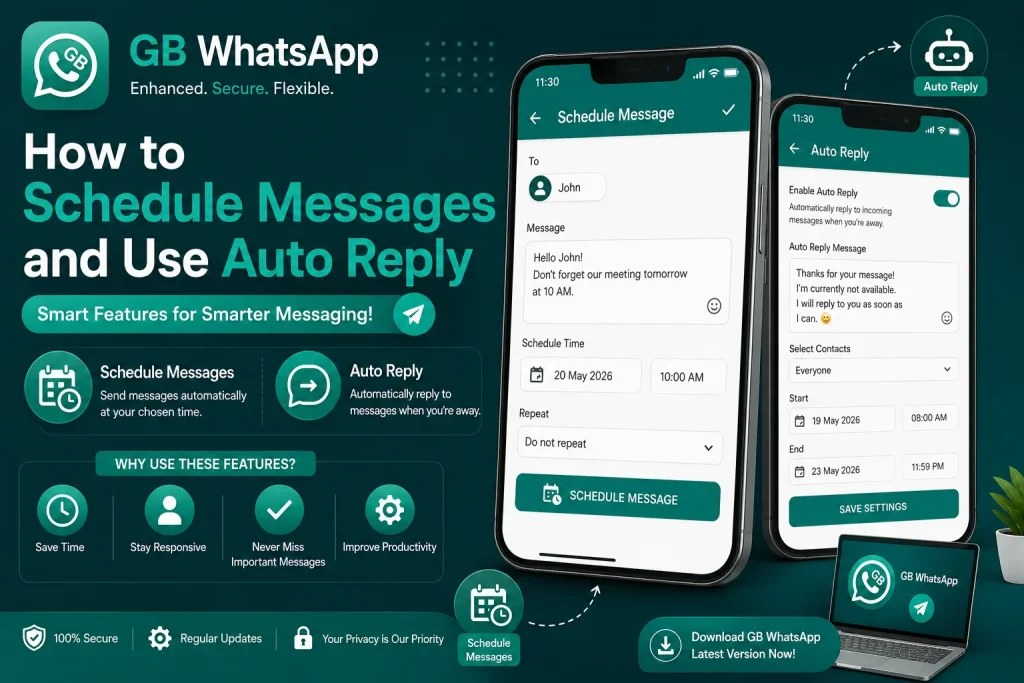
How to Schedule a Message in GB WhatsApp
Scheduling a message is straightforward and works in both private and group chats.
- Open GB WhatsApp and go to the chat where you want to schedule a message.
- Type your message in the text input.
- Long-press the send button instead of tapping it once.
- A scheduling menu will appear.
- Pick a date and time for the message to be sent.
- Tap Schedule to confirm.
The scheduled message will appear in the chat with a clock icon, and the app will send it automatically at the chosen time. You can edit or cancel the schedule any time before the send happens.
How to Schedule Recurring Messages
Recurring messages are useful for daily reminders, weekly check-ins, or monthly announcements. GB WhatsApp supports a built-in recurrence option in the scheduler.
- Open GB WhatsApp and type your message.
- Long-press the send button to open the scheduler.
- Pick the date, time, and tap Repeat.
- Choose Daily, Weekly, or Monthly recurrence.
- Set an end date if you want the schedule to stop automatically.
- Tap Schedule to confirm.
This is a popular feature for users who send the same reminder to a group every week, or who want to wish contacts happy birthday automatically.
How to Set Up Auto Reply
Auto reply is designed to respond automatically when you receive a message. The feature is often used for business hours, out-of-office replies, and customer support workflows.
- Open GB WhatsApp and go to GB Settings.
- Tap Auto Reply or Message Automation.
- Tap Add Rule to create a new auto reply.
- Choose the trigger: All Messages, Specific Contacts, or Specific Keywords.
- Type the reply message in the text box.
- Set the active hours or days for the rule.
- Save the rule and enable the auto reply toggle.
Once enabled, GB WhatsApp will reply automatically to incoming messages that match the trigger, even when you are not actively using the app.
Auto Reply Triggers Explained
GB WhatsApp supports several auto reply triggers, each with its own use case. The table below breaks down the most common options.
| Trigger | Behavior | Best For |
|---|---|---|
| All messages | Replies to every incoming message | Out-of-office coverage |
| Specific contacts | Replies only to selected contacts | VIP clients or family |
| Specific keywords | Replies when a message contains a keyword | Customer support, FAQs |
| Group messages only | Replies only to group chats | Community managers |
| Business hours | Replies only outside set hours | After-hours coverage |
Combining triggers lets you build sophisticated workflows without any coding. For example, you can reply to a specific keyword in a group chat only during business hours.
How to Schedule Auto Replies
Scheduling auto replies is the best way to handle vacations, sleep hours, and after-hours coverage without lifting a finger.
- Open GB WhatsApp and go to GB Settings.
- Tap Auto Reply, then Schedule.
- Set the start and end date for the auto reply rule.
- Choose the active hours, such as 10 PM to 8 AM.
- Type the away message in the text box.
- Save the schedule and enable the toggle.
During the scheduled window, GB WhatsApp will reply automatically to any incoming message that matches your trigger rules, then stop when the schedule ends.
Best Practices for Scheduling and Auto Reply
A few habits will make your automation setup more reliable and prevent embarrassing mistakes.
- Keep auto reply messages short, polite, and clear about response times.
- Test the rule with a friend before relying on it for business.
- Use keyword triggers to handle FAQs instead of replying to every message.
- Combine scheduling with auto reply for full hands-free coverage.
- Disable auto reply rules during important conversations to avoid awkward auto messages.
- Review the auto reply history weekly to refine the rules.
Following these habits keeps your automation professional, accurate, and helpful for the people who rely on your replies.
Common Issues and Fixes
Automation can occasionally misfire. The table below covers the most common problems and how to fix them quickly.
| Issue | Cause | Fix |
|---|---|---|
| Scheduled message did not send | App was closed at send time | Keep GB WhatsApp running in the background |
| Auto reply not triggering | Trigger keyword is too specific | Add variations or use All Messages trigger |
| Auto reply sending repeatedly | Same message in a loop | Add a delay between replies in advanced settings |
| Schedule disappeared after update | App reset preferences | Re-create the schedule after major updates |
FAQs About Scheduling Messages and Auto Reply in GB WhatsApp
Can I schedule messages on the official WhatsApp?
No, the official WhatsApp does not support message scheduling. GB WhatsApp is one of the only WhatsApp clients that lets you schedule messages natively, with no third-party plugins or external automation tools required.
Does auto reply work when my phone is off?
No, auto reply requires GB WhatsApp to be running in the background. If your phone is off or the app is force-closed, auto replies will not trigger. Keep the app running with battery optimization disabled for reliable automation.
Can I set different auto replies for different contacts?
Yes, GB WhatsApp lets you create multiple auto reply rules with different triggers. You can set one rule for VIP clients, another for groups, and a third for specific keywords, all running at the same time without overlap.
Can I schedule a message in a group chat?
Yes, you can schedule messages in any chat, including group conversations. The scheduled message will appear with a clock icon, and the app will send it automatically at the chosen time. Group admins can use this feature to send announcements at the perfect moment.
How many scheduled messages can I create?
There is no hard limit on the number of scheduled messages you can create in GB WhatsApp. You can schedule dozens of messages across different chats, including recurring reminders and one-time announcements, all managed from the scheduling menu.